Category: Wordpress

  • Secure Your Site Fast: Shared Hosting with SSL for Easy Security and Trust

    In today’s online world, security isn’t optional—it’s essential. Shared Hosting with SSL offers an easy, affordable way to lock down your site, boost visitor trust, and even improve your search rankings. At ByteNap, we’ve made SSL a standard feature in our shared hosting plans because we believe every site deserves protection—without the hassle or extra cost. But why does it matter, and how can you secure your site fast?

    In this post, we’ll explore why shared hosting with SSL is a game-changer, how free SSL boosts trust, and guide you through easy security steps with ByteNap’s plans. Let’s dive in and see why SSL isn’t just a perk—it’s a must-have.

    What Is Shared Hosting with SSL?

    Let’s break it down. Shared Hosting means multiple websites share a single server’s resources—CPU, RAM, storage—making it budget-friendly and simple to manage. SSL, or Secure Sockets Layer, is a protocol that encrypts data between your site and its visitors, keeping it safe from prying eyes. When you see “https://” or a padlock in your browser, that’s SSL at work.

    Shared Hosting with SSL combines these: affordable hosting with built-in encryption. At ByteNap, every shared hosting plan includes free SSL certificates, so you get security without the extra cost or complexity. Ready to secure your site fast? Here’s how it pays off.

    Secure Your Site Fast: Shared Hosting with SSL!

    Speed and security go hand in hand with shared hosting and SSL. Here’s why ByteNap’s plans make it a breeze to lock down your site in no time.

    Instant SSL Activation

    No one wants to wait days for security. ByteNap’s shared hosting includes free SSL via Let’s Encrypt, activated with one click—or automatically on setup. Your site goes from “http” to “https” fast, protecting data from the get-go.

    Protection That Packs a Punch

    Hackers love unsecured sites—66% of cyberattacks target small businesses. SSL encrypts sensitive info like logins, forms, and payments. ByteNap’s shared hosting with SSL ensures your visitors’ data stays safe, no tech skills required.

    Google Loves It

    Since 2014, Google’s favored secure sites, boosting their SEO rankings. With ByteNap’s free SSL, your shared hosting plan doubles as a search engine advantage—secure your site fast and climb the results.

    No Downtime Worries

    Switching to SSL shouldn’t mean outages. ByteNap handles the setup seamlessly—your site stays live while security kicks in. Fast, easy, and reliable.

    Securing your site doesn’t need to be slow or stressful. ByteNap’s shared hosting with SSL gets it done in a snap.

    Free SSL? Why Shared Hosting with SSL Matters

    “Free SSL” sounds too good to be true—until you see why it’s a big deal. Here’s why shared hosting with SSL matters, especially when it’s on the house.

    Cost Savings Add Up

    SSL certificates used to cost $50-$100 yearly. ByteNap’s free SSL—powered by Let’s Encrypt—cuts that expense to zero. For small sites on shared hosting, every dollar counts, and free security keeps your budget intact.

    Trust Is Non-Negotiable

    Visitors ditch sites without “https”—83% won’t enter personal info on unsecured pages. Free SSL with ByteNap’s shared hosting shows that padlock, signaling safety. It’s a trust signal you can’t afford to skip.

    Compliance Made Simple

    Handling payments or user data? Regulations like GDPR and PCI DSS demand encryption. ByteNap’s free SSL ensures your shared hosting meets these standards—no extra fees or headaches.

    Future-Proofing Your Site

    Browsers like Chrome now flag non-SSL sites as “Not Secure.” That’s a red flag for users. Free SSL with ByteNap keeps your site modern and visitor-friendly, no matter what updates come next.

    Free SSL isn’t a gimmick—it’s a game-changer. With ByteNap, shared hosting with SSL matters because it’s smart, not spendy.

    Boost Trust: Shared Hosting with SSL Included

    Trust is the currency of the web—and SSL is your trust-building tool. Here’s how ByteNap’s shared hosting with SSL included turns visitors into loyal users.

    The Padlock Effect

    That little lock in the address bar? It’s a trust magnet. Studies show 77% of users feel safer on “https” sites. ByteNap’s SSL inclusion means your shared hosting plan builds confidence from the first click.

    Fewer Bounce Rates

    Unsecure sites scare people off—40% leave if they see a warning. ByteNap’s free SSL keeps visitors on your page, whether they’re browsing, shopping, or signing up. Trust keeps them engaged.

    Brand Credibility

    A secure site looks pro. For small businesses or bloggers on ByteNap’s shared hosting, SSL signals you’re serious—boosting your rep without extra effort.

    Customer Loyalty

    When users feel safe, they come back. ByteNap’s SSL-protected shared hosting turns one-time visitors into regulars by showing you’ve got their back.

    Trust isn’t optional—it’s earned. Shared hosting with SSL from ByteNap builds it effortlessly.

    Easy Security: Shared Hosting with SSL Guide

    Security sounds daunting, but with ByteNap’s shared hosting and SSL, it’s a walk in the park. Here’s your step-by-step guide to easy protection.

    Step 1: Pick a ByteNap Plan

    Every ByteNap shared hosting plan includes free SSL—choose based on your needs:

    • Basic: $2.99/month – 5 GB SSD, 1 site, 250 GB bandwidth
    • Plus: $5.99/month – 15 GB SSD, 3 sites, 500 GB bandwidth
    • Pro: $8.99/month – 30 GB SSD, unlimited sites, 1 TB bandwidth All come with SSL, 99.9% uptime, and 24/7 support.

    Step 2: Activate SSL

    Log into ByteNap’s control panel (cPanel or Plesk), find the SSL section, and click to enable Let’s Encrypt. It’s auto-installed on new accounts—zero fuss.

    Step 3: Update Your Site

    Switch links from “http” to “https.” For WordPress, use a plugin like Really Simple SSL. ByteNap’s support can guide you if needed.

    Step 4: Test It

    Visit your site—see the padlock? You’re secure. Use tools like SSL Labs to confirm everything’s tight.

    Step 5: Maintain It

    ByteNap auto-renews your SSL every 90 days—no manual work. Just keep your site updated for max security.

    Easy security is real with ByteNap. Shared hosting with SSL takes minutes, not mastery.

    ByteNap’s Shared Hosting with SSL Plans

    Here’s a closer look at ByteNap’s lineup—secure, affordable, and ready to go:

    1. Shared Basic

    • Price: $2.99/month (Promo: $2.49/month for first year)
    • Features: 5 GB SSD, 1 website, free SSL, 250 GB bandwidth
    • Best For: Blogs or personal sites
    • Why It’s Great: Cheap security for starters.

    2. Shared Plus

    • Price: $5.99/month (Promo: $4.99/month with annual billing)
    • Features: 15 GB SSD, 3 websites, free SSL, 500 GB bandwidth
    • Best For: Small businesses
    • Why It’s Great: Multi-site security on a budget.

    3. Shared Pro

    • Price: $8.99/month (Limited Deal: $7.49/month for 6 months)
    • Features: 30 GB SSD, unlimited websites, free SSL, 1 TB bandwidth
    • Best For: Growing sites or portfolios
    • Why It’s Great: Unlimited potential, fully secure.

    All plans include one-click installs, daily backups (optional), and 24/7 support. Secure your site fast at cms.bytenap.com/.

    Why Shared Hosting with SSL?

    Still on the fence? Here’s why it’s a no-brainer:

    • Affordable: Starts at $2.49/month with SSL included.
    • Simple: No tech skills needed—ByteNap handles the heavy lifting.
    • Secure: Encryption protects you and your users.
    • Trusted: Boosts credibility and SEO.

    For small sites, shared hosting with SSL is the perfect fit.

    Real Wins with ByteNap Shared Hosting and SSL

    Here’s what customers say:

    • Jade, Blogger: “Shared Basic with SSL made my site pro—readers noticed!”
    • Mike, Shop Owner: “Shared Plus keeps my store secure—customers trust me now.”
    • Ava, Freelancer: “Shared Pro’s SSL setup was so easy—huge win for my clients.”

    These stories show security builds success.

    Tips to Maximize Shared Hosting with SSL

    Get more from ByteNap’s plans:

    1. Force HTTPS: Redirect all traffic to secure pages—ByteNap’s panel makes it simple.
    2. Update Regularly: Keep your CMS and plugins fresh for safety.
    3. Use Strong Passwords: SSL’s great, but weak logins undo it.
    4. Monitor Traffic: Stay within bandwidth—upgrade if needed.
    5. Backup Often: ByteNap’s got options—use them.

    Easy security starts here—make it yours.

    Why ByteNap for Shared Hosting with SSL?

    ByteNap delivers:

    • Free SSL: No hidden costs, ever.
    • Fast Setup: Secure in minutes.
    • Reliable Hosting: 99.9% uptime keeps you live.
    • Support 24/7: Real help, anytime.

    We’re your shortcut to a secure, trusted site.

    Conclusion: Secure, Trustworthy, and Easy with ByteNap

    Shared Hosting with SSL is your fast track to a secure site—boosting trust, meeting standards, and keeping costs low. ByteNap’s plans make it easy, with free SSL included and performance you can rely on. Why wait to protect your site?

    Head to cms.bytenap.com/ and grab a shared hosting plan today. Secure your site fast—your visitors deserve it.
  • Manage WordPress Easily with PHPMyAdmin Tools

    Manage WordPress Easily with PHPMyAdmin Tools

    Managing a WordPress website can sometimes require more than just the admin dashboard. If you need to make deeper changes—like editing databases—PHPMyAdmin becomes a valuable tool. In this post, we’ll explore what phpMyAdmin is, how it works with WordPress, and the benefits of using it for your website’s management.

    What Is phpMyAdmin?

    PHPMyAdmin is an open-source, web-based tool used to manage MySQL and MariaDB databases. It provides a user-friendly interface that makes it easy to handle databases without needing advanced SQL knowledge. If your website is powered by WordPress, which relies on a MySQL database to store all its data (like posts, pages, comments, and user information), phpMyAdmin is an essential tool for database management. Most web hosting services, including those offering WordPress hosting, come with phpMyAdmin pre-installed. You can access it from your hosting control panel, such as cPanel or Plesk.

    How to Manage WordPress with phpMyAdmin

    PHPMyAdmin offers various functions that allow you to make changes to your WordPress database directly. Below is a step-by-step guide on how to perform key tasks.

    Accessing phpMyAdmin

    To manage your WordPress database:
    Log in to your hosting control panel (such as cPanel).
    Look for the phpMyAdmin option under the “Databases” section.
    Click on phpMyAdmin, and it will open a new page showing all your databases.

    Finding the WordPress Database

    In phpMyAdmin, you will see a list of databases on the left panel.
    Identify the database linked to your WordPress site. (The name is usually provided in the wp-config.php file of your website.)
    Click on the database name to see all its tables, such as wp_posts, wp_users, and wp_options.

    Managing User Passwords

    If you need to reset a WordPress user password through phpMyAdmin:
    Open the wp_users table.
    Find the user you want to update and click Edit.
    In the password field, select MD5 from the function dropdown (as WordPress encrypts passwords in MD5).
    Enter the new password and click Go to save it.

    Fixing Broken Plugins and Themes

    Sometimes a plugin or theme can crash your site, making it impossible to access the WordPress admin. Using phpMyAdmin, you can disable them:
    Open the wp_options table.
    Look for the active_plugins row.
    Click Edit, delete the content, and save the changes.
    This action will disable all plugins, allowing you to access the admin panel again and troubleshoot the issue.

    Creating Database Backups

    It’s always a good idea to back up your WordPress database before making major changes. In phpMyAdmin:
    Select your WordPress database.
    Click the Export tab.
    Choose the Quick Export option and click Go.
    This will download a .sql file containing your entire database, which can be restored if needed.

    Benefits of Using phpMyAdmin with WordPress

    phpMyAdmin offers several benefits that make it an important tool for WordPress site owners:

    Direct Database Access and Management

    phpMyAdmin allows you to directly manage your website’s database, which is crucial for troubleshooting problems like corrupted data or plugin conflicts.

    Easier User Management

    If you ever forget your WordPress admin password or if user accounts become inaccessible, phpMyAdmin offers an easy way to reset passwords.

    Efficient Backup and Restore

    Creating backups of your database is simple with phpMyAdmin. These backups ensure that even if your site crashes, you can quickly restore it to its previous state.

    Quick Troubleshooting

    You can quickly disable faulty plugins or themes that may break your site. Without phpMyAdmin, you might need to access the file system, which can be more complicated for non-technical users.

    User-Friendly Interface

    phpMyAdmin’s web interface is easier to use compared to working with raw SQL commands. Even if you’re not a developer, you can still perform advanced tasks with minimal effort.

    Secure Database Management

    phpMyAdmin supports encrypted connections, making sure that your database transactions are safe. With proper security measures, such as limiting access through passwords and firewalls, phpMyAdmin becomes a reliable tool for sensitive data management.

    Conclusion

    PHPMyAdmin is a powerful and essential tool for managing WordPress databases. Whether you need to reset passwords, troubleshoot plugin issues, or back up your site, phpMyAdmin offers a convenient way to handle your WordPress database without requiring advanced technical skills. It saves time, simplifies complex tasks, and ensures your website stays in good health. For anyone running a WordPress website, knowing how to use phpMyAdmin can make a big difference in managing your site efficiently and confidently. Be sure to back up your database before making changes and keep phpMyAdmin secure by using strong passwords and limited access settings. With phpMyAdmin, you’ll have greater control over your WordPress site, helping you manage it smoothly and avoid common issues.

  • Keep Malware & Hackers Away from Your WordPress Website

    Keep Malware & Hackers Away from Your WordPress Website

    WordPress runs over 40% of all websites worldwide, so it is a major target for hackers and malicious malware in today’s digital world. Keeping your WordPress Website secure is a continuous effort that calls for attentiveness and preventative steps. Here are some security precautions you may take to shield your WordPress website against viruses and hackers.

    Keep WordPress and Plugins Updated

    Updating the WordPress core, themes, and plugins is one of the easiest yet most effective ways to secure your WordPress website. Updates are frequently released by developers to address bugs and security flaws. Should you neglect to apply these updates, your website becomes vulnerable to possible attacks. You can allow WordPress core and plugin automatic updates to make this easier. To prevent problems with your site, make sure it’s compatible before making any significant adjustments.

    Use Strong Passwords and Two-Factor Authentication

    The first layer of protection against unwanted access is a password. Make that all of the user accounts on WordPress, including the admin account, have strong, distinctive passwords. A strong password should have a mix of characters, digits, and symbols. Enabling two-factor authentication (2FA) further enhances security by requiring a second form of verification in addition to the password, such as a number delivered to your phone.

    Limit Login Attempts

    Brute force attacks, in which hackers attempt several login and password combinations, are frequently used to access WordPress websites. One way to assist prevent brute force assaults is to limit the number of login attempts that a user is allowed to make. To impose this limitation, use plugins such as “WP Limit Login Attempts” or “Limit Login Attempts Reloaded”.

    Secure Your Login Page

    WordPress users can access the login page by going to yoursite.com/wp-admin or yoursite.com/wp-login.php by default. These URLs are regularly the target of hackers. Hide your login page from automated attacks by changing the login URL to something unique. For further protection against automated assaults and bots, you can incorporate a CAPTCHA into your login page.

    Install a Security Plugin

    Your WordPress website can be completely protected by installing a reliable security plugin. The capabilities of plugins like “Wordfence Security,” “iThemes Security,” and “Sucuri Security” include firewall protection, malware detection, and real-time site monitoring for unusual activities. These tools can notify you about possible security risks and offer suggestions on how to make your website more secure.

    Use HTTPS and SSL Certificates

    Data sent between your website’s visitors and SSL (Secure Sockets Layer) certificates is encrypted, making it more difficult for hackers to intercept. Because HTTPS websites are given preference by Google, SSL certificates are crucial for both SEO and security. You can quickly install free SSL certificates on your WordPress website from the majority of hosting companies.

    Regular Backups

    Since there is no 100% secure solution, having a solid backup plan is essential. Having regular backups guarantees that you can promptly restore your site to a previous state without losing important data in the event that it is compromised. You may schedule automatic backups and save them in safe places like cloud storage with a number of plugins, including “UpdraftPlus” and “BackupBuddy”.

    Monitor and Audit Your Site Regularly

    By keeping an eye out for strange activity on your website, you can identify any risks early on and take appropriate action to stop them before they cause serious harm. While security plugins might aid in real-time monitoring, it’s equally crucial to manually audit the files, user accounts, and permissions on your website.

    Choose a Secure Hosting Provider

    Your choice of hosting company has a big impact on how secure your WordPress website is. Choose a supplier that offers strong security measures like firewalls at the server level, automatic upgrades, and virus scanning. WordPress security is their area of expertise and managed WordPress hosting company like ByteNAP can give an extra degree of defence.

    Conclusion

    Adopting a multifaceted strategy is necessary to safeguard your WordPress website against viruses and hackers. You may greatly lower the chance of your website being hacked by adopting preventative steps including updating your site, using strong passwords, restricting the number of login attempts, and employing security plugins. Recall that maintaining website security calls for constant attention to detail and action.

  • The Ultimate Guide to WordPress SEO – Copy

    The Ultimate Guide to WordPress SEO – Copy

    Imagine owning a delightful bookstore cafe in Boston. When someone looks for a “bookstore cafe near [a Boston neighbourhood]” on Google, you want your WordPress website to appear at the top of the search results. Achieve this by implementing the best WordPress SEO strategies.

    Achieving a top spot on a search engine results page (SERP) for your website is possible through strategic site optimization. By focusing on WordPress SEO and utilizing proven methods, you can differentiate yourself from competitors and attract increased traffic.

    What is SEO?

    SEO, or search engine optimization, is enhancing your website’s visibility and ranking on search engines like Google to boost organic traffic. Improving your content increases the chances of it appearing at the top of the SERP for targeted keywords.

    Now that you grasp the concept of SEO, let’s explore why it’s essential for your business.

    Why is investing in WordPress SEO so crucial?

    WordPress SEO is crucial for enhancing the visibility and credibility of your WordPress site. By optimizing your content for search engines, you can attract more organic traffic and improve your site’s rankings on platforms like Google. Invest in WordPress SEO to increase the chances of reaching potential customers who are actively searching for products or services like yours. Enhancing your SEO efforts is a cost-effective way to boost traffic, attract leads, and improve key metrics on your WordPress site.

    Best Practices for WordPress SEO

    Are you ready to delve into twelve WordPress SEO best practices that can help improve your website, increase organic traffic, and enhance your brand’s authority on search engines? Here’s what you need to know to get started.

    1. Review Your WordPress Visibility Settings

    When optimizing WordPress SEO, the first rule is to check all your settings. Ensuring that your visibility settings in WordPress are properly configured can greatly benefit you. WordPress has a feature that allows you to hide your website from search engines, which can be useful when working on your site.

    You can find this feature in your WordPress dashboard under “Settings.” Be sure to double-check that this feature is not accidentally enabled or left on after completing your website. If it is turned on, it doesn’t matter how much effort you put into your SEO – your website will not rank well.

    1. Selecting an SEO Plugin

    WordPress plugins add extra features to websites and are beginner-friendly. With thousands to choose from, they enhance SEO options. Explore the repository to find the right plugin.

    SEO plugins improve website SEO with tools like XML sitemap creation, tag optimization, keyword use, breadcrumbs management, and Google Analytics. Popular options are Yoast SEO, All In One SEO Pack, and SmartCrawl Pro. After selecting your preferred WordPress plugin, you can download and install it to enhance your SEO efforts immediately.

    1. Use XML Sitemaps

    WordPress plugins enhance website features, are easy to use and boost SEO with options like XML sitemaps, tags, and keywords. Yoast SEO, All In One SEO Pack, and SmartCrawl Pro are top choices. Select your plugin to improve SEO.

    Use XML Sitemaps. An XML sitemap helps search engines find and rank your content. Use tools like Yoast SEO or Google XML Sitemaps for easy creation.

    For more information on why WordPress suggests using a sitemap, you can refer to this page. Sitemaps

    1. Internal Link Building for Better SEO

    To enhance your SEO, boosting your website’s authority is crucial. An essential aspect search engines use to gauge your site’s authority is the frequency of internal linking within your pages, posts, blogs, and other content.

    To incorporate links to other content, you can select the text on your page that you wish to link, click on the link option in the WordPress toolbar, and then paste the URL you want to link to. This simple process will underline the linked text and direct your visitors to the desired URL.

    1. Manage Your Security

    As discussed regarding SSL certificates, search engines favour secure websites. Therefore, the more secure your website is, the better your authority and ranking will be.

    Depending on your WordPress plan, security may or may not be included. If needed, consider using a plugin like Wordfence Security or iThemes Security to strengthen your site’s protection.

    1. Choose WWW or non-WWW

    There are two main ways to access websites by URL — you can either search with the “www” (e.g., www.mysite.com) or without it (e.g., mysite.com).

    Search engines view these two URLs as different websites, so it’s crucial to choose one and stick with it. There’s no right or wrong option, and it won’t affect your SEO — it’s simply a preference.

    Once you make a choice, stick to it to enhance your site’s SEO. Link to your official domain name internally and externally on social media and email. Being consistent with your domain and linking to it frequently can improve your authority with search engines and increase your chances of ranking. Plus, it makes things easier for visitors, so it’s a win-win. To choose, go to your WordPress dashboard, click “Settings,” and in “General Settings,” you’ll find the form fields for your URL.

    Conclusion

    By following the SEO advice given in this manual for your WordPress site, you can boost its credibility and visibility on search engines. This, in turn, may draw more visitors, create leads, and ultimately increase conversions. Utilize WordPress SEO features and tools to improve your site’s search engine optimization.

  • Launch Your Online Store with WooCommerce Web Hosting

    Launch Your Online Store with WooCommerce Web Hosting

    Starting an online store can seem daunting, but with the right tools and support, it can be a smooth and rewarding experience. WooCommerce, the leading e-commerce plugin for WordPress, offers a comprehensive solution that makes setting up and managing an online store accessible to everyone. Paired with a dedicated WooCommerce Web Hosting service, you can unlock the full potential of your e-commerce business.

    Why WooCommerce is the Go-To Solution for E-commerce

    Seamless WordPress Integration
    WooCommerce is designed to work seamlessly with WordPress, the world’s most popular content management system (CMS). If you’re already familiar with WordPress, integrating WooCommerce into your existing site is straightforward. This integration allows you to utilise WordPress’s powerful features while adding robust e-commerce functionality to your website. From blogging to product pages, everything works harmoniously within the same platform.

    Cost-Effective and Scalable
    WooCommerce scales effortlessly as your business grows; you can start with a basic setup and add more features, products, and services as needed, without worrying about outgrowing your platform. One of WooCommerce’s biggest advantages is that it is free to use and open-source, making it an attractive option for startups and small businesses working with tight budgets.

    Extensive Customization Options
    Customization is necessary for any online store, and WooCommerce meets this need. With thousands of premium and free themes and plugins at your disposal, you may customize the appearance and features of your store to suit your unique requirements. With WooCommerce, you can customize the checkout process, add sophisticated shipping options, and integrate several payment methods to make your site truly unique.

    SEO-Friendly
    With SEO best practices in mind, WooCommerce was developed. You may quickly optimize your items and content to rank higher in search engine results because it runs on WordPress, which is well-known for being SEO-friendly. By increasing your store’s visibility and bringing in more organic traffic and potential customers, this integrated SEO functionality helps.

    The Importance of WooCommerce Web Hosting

    Although WooCommerce offers a strong foundation for your online store, the caliber of your web hosting provider also has a significant impact on the performance of your website. A dedicated WooCommerce web hosting service makes sure that everything works properly, safely, and effectively in your business.

    Automatic Updates and Maintenance
    Updating your WooCommerce website is crucial for both functionality and security. Automatic updates for WordPress, WooCommerce, and any installed plugins are frequently included by a high-quality WooCommerce site hosting company. Without requiring manual management, this function makes sure your store is always running the most recent versions with all the newest features and security patches.

    Enhanced Security
    Security is a top priority for any e-commerce site, as it handles sensitive customer information like payment details. WooCommerce hosting services often include advanced security measures, such as SSL certificates, regular backups, and malware scanning, to protect your site from cyber threats. These built-in security features give you peace of mind, knowing that your customers’ data is safe.

    Dedicated Support
    You can run into technical problems managing an online store, or you might need help setting up WooCommerce. Experts in WordPress and WooCommerce, dedicated support teams are provided by specialized WooCommerce hosting services. As a result, you can minimize downtime and guarantee that your store stays open by receiving assistance promptly and effectively.

    Automatic Updates and Maintenance
    Updating your WooCommerce website is crucial for both functionality and security. Automatic updates for WordPress, WooCommerce, and any installed plugins are frequently included by a high-quality WooCommerce site hosting company. Without requiring manual management, this function makes sure your store is always running the most recent versions with all the newest features and security patches.

    Conclusion

    Using WooCommerce web hosting to build an online store has several benefits, including excellent security, a wide range of customization options, and a smooth WordPress connection. WooCommerce is a great option for companies of all sizes due to its affordability and scalability. When combined with a dedicated hosting package, it offers the security, performance, and help required to manage a profitable online store. WooCommerce hosting gives you the ability to build a robust and user-friendly e-commerce website that can grow with your business, regardless of whether you’re just getting started or looking to expand.

  • The Ultimate Guide to WordPress SEO

    The Ultimate Guide to WordPress SEO

    Imagine owning a delightful bookstore cafe in Boston. When someone looks for a “bookstore cafe near [a Boston neighbourhood]” on Google, you want your WordPress website to appear at the top of the search results. Achieve this by implementing the best WordPress SEO strategies.

    Achieving a top spot on a search engine results page (SERP) for your website is possible through strategic site optimization. By focusing on WordPress SEO and utilizing proven methods, you can differentiate yourself from competitors and attract increased traffic.

    What is SEO?

    SEO, or search engine optimization, is enhancing your website’s visibility and ranking on search engines like Google to boost organic traffic. Improving your content increases the chances of it appearing at the top of the SERP for targeted keywords.

    Now that you grasp the concept of SEO, let’s explore why it’s essential for your business.

    Why is investing in WordPress SEO so crucial?

    WordPress SEO is crucial for enhancing the visibility and credibility of your WordPress site. By optimizing your content for search engines, you can attract more organic traffic and improve your site’s rankings on platforms like Google. Invest in WordPress SEO to increase the chances of reaching potential customers who are actively searching for products or services like yours. Enhancing your SEO efforts is a cost-effective way to boost traffic, attract leads, and improve key metrics on your WordPress site.

    Best Practices for WordPress SEO

    Are you ready to delve into twelve WordPress SEO best practices that can help improve your website, increase organic traffic, and enhance your brand’s authority on search engines? Here’s what you need to know to get started.

    1. Review Your WordPress Visibility Settings

    When optimizing WordPress SEO, the first rule is to check all your settings. Ensuring that your visibility settings in WordPress are properly configured can greatly benefit you. WordPress has a feature that allows you to hide your website from search engines, which can be useful when working on your site. 

    You can find this feature in your WordPress dashboard under “Settings.” Be sure to double-check that this feature is not accidentally enabled or left on after completing your website. If it is turned on, it doesn’t matter how much effort you put into your SEO – your website will not rank well.

    1. Selecting an SEO Plugin

    WordPress plugins add extra features to websites and are beginner-friendly. With thousands to choose from, they enhance SEO options. Explore the repository to find the right plugin.

    SEO plugins improve website SEO with tools like XML sitemap creation, tag optimization, keyword use, breadcrumbs management, and Google Analytics. Popular options are Yoast SEO, All In One SEO Pack, and SmartCrawl Pro. After selecting your preferred WordPress plugin, you can download and install it to enhance your SEO efforts immediately.

    1. Use XML Sitemaps

    WordPress plugins enhance website features, are easy to use and boost SEO with options like XML sitemaps, tags, and keywords. Yoast SEO, All In One SEO Pack, and SmartCrawl Pro are top choices. Select your plugin to improve SEO.

    Use XML Sitemaps. An XML sitemap helps search engines find and rank your content. Use tools like Yoast SEO or Google XML Sitemaps for easy creation.

    For more information on why WordPress suggests using a sitemap, you can refer to this page. Sitemaps

    1. Internal Link Building for Better SEO

    To enhance your SEO, boosting your website’s authority is crucial. An essential aspect search engines use to gauge your site’s authority is the frequency of internal linking within your pages, posts, blogs, and other content.

    To incorporate links to other content, you can select the text on your page that you wish to link, click on the link option in the WordPress toolbar, and then paste the URL you want to link to. This simple process will underline the linked text and direct your visitors to the desired URL.

    1. Manage Your Security

    As discussed regarding SSL certificates, search engines favour secure websites. Therefore, the more secure your website is, the better your authority and ranking will be.

    Depending on your WordPress plan, security may or may not be included. If needed, consider using a plugin like Wordfence Security or iThemes Security to strengthen your site’s protection.

    1. Choose WWW or non-WWW

    There are two main ways to access websites by URL — you can either search with the “www” (e.g., www.mysite.com) or without it (e.g., mysite.com).

    Search engines view these two URLs as different websites, so it’s crucial to choose one and stick with it. There’s no right or wrong option, and it won’t affect your SEO — it’s simply a preference.

    Once you make a choice, stick to it to enhance your site’s SEO. Link to your official domain name internally and externally on social media and email. Being consistent with your domain and linking to it frequently can improve your authority with search engines and increase your chances of ranking. Plus, it makes things easier for visitors, so it’s a win-win. To choose, go to your WordPress dashboard, click “Settings,” and in “General Settings,” you’ll find the form fields for your URL.

    Conclusion

    By following the SEO advice given in this manual for your WordPress site, you can boost its credibility and visibility on search engines. This, in turn, may draw more visitors, create leads, and ultimately increase conversions. Utilize WordPress SEO features and tools to improve your site’s search engine optimization.

  • How to Back Up WordPress

    How to Back Up WordPress

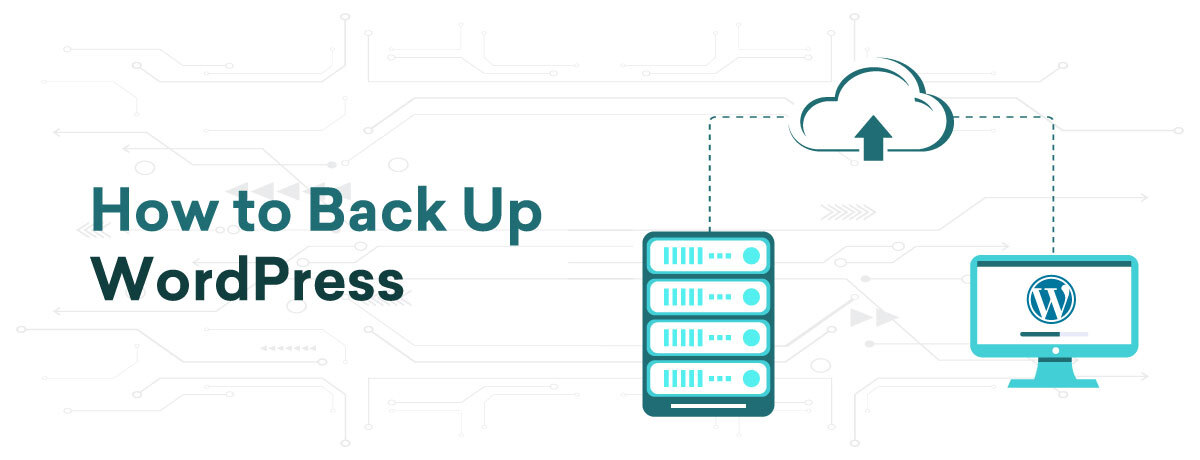
    How to Back Up WordPress

    Backing up your WordPress website is a crucial step in ensuring the safety and longevity of your online presence. Imagine losing all your content, customer data, and customizations due to a server crash, hacking incident, or a simple human error. Such a scenario is not just inconvenient; it can be catastrophic for your business or personal brand. Regular backups serve as a safety net, enabling you to quickly and efficiently restore your site, regardless of the situation. They protect your efforts and provide peace of mind by ensuring the security of your digital assets. In this guide, we will show you how to back up a WordPress website.

    Don’t have your WordPress site yet? Check out our WordPress Guides to get started.

    WordPress Backup Options Overview

    When it comes to backing up your WordPress site, there are several options to choose from, each with its own advantages. You can opt for manual methods, which involve hands-on steps to save your files and database. While this approach offers control and insight into the process, it can be time-consuming and requires a certain level of technical expertise.

    On the other hand, automated backup solutions offer convenience and consistency. These solutions, often in the form of plugins, can be configured to run backups at regular intervals, ensuring that your site’s latest state is always saved without constant intervention. Understanding these options and choosing the right one for your requirements is crucial for effective WordPress backup management.

    In the following sections, we will explore these methods extensively, guiding you through manual and automated backup processes, as well as highlighting advancing larger or more intricate WordPress sites.

    Understanding WordPress Backup

    In this section, we explore the contents of WordPress backups, the various types available, and the recommended frequency for scheduling them.

    Types of WordPress Backups: Database vs. Full Site Backup

    A typical WordPress backup comprises two primary parts:

    Database Backup: This section holds all your site’s content, such as posts, pages, comments, and user data. It serves as the backbone of your WordPress site, preserving all textual and metadata information.

    File Backup: This segment encompasses your WordPress core files, plugins, themes, and media files (images, videos, etc.). These files determine the look and functionality of your site.

    Both components are essential for a comprehensive site restoration.

    What is Included in a WordPress Backup?

    There are two main types of backups:

    • Database Backup: Focuses solely on your WordPress database. It’s faster and smaller in size but does not include themes, plugins, or media files.
    • Full Site Backup: Includes both your database and all your WordPress files. It provides a comprehensive snapshot of your site, ideal for complete restorations.

    Frequency and Scheduling of Backups

    The frequency of backups should match how often your site is updated. Consider these recommendations:

    High-traffic or frequently updated sites: Daily backups are advised.

    Moderately updated sites: Weekly backups may be sufficient.

    Low-activity sites: Monthly backups could be enough.

    Automating your backup schedule ensures consistency and reliability, reducing the risk of data loss.

    Manual Backup Methods

    Backing up your WordPress site manually involves two main components: backing up your WordPress files and the database. This process requires some technical knowledge, but it gives you full control over the backup process.

    How to Manually Backup WordPress Files

    To manually back up your WordPress files, follow these steps:

    Access Your Site via FTP: Use an FTP client like FileZilla to connect to your web hosting account.

    Navigate to the WordPress Directory: This is typically named public_html or www.

    Download the Files: Choose all files and folders in the WordPress directory and save them to your local computer. This encompasses the wp-content folder (which holds themes, plugins, and media), wp-config.php, and other core WordPress files.

    Manually Backing Up the WordPress Database via Command Line

    Backing up your WordPress database via the command line is a more effective approach for those familiar with shell commands.Here is how you can do it:

    • Access Your Server: Log in to your server securely using SSH (Secure Shell). You can do this using a command line tool like Terminal on MacOS or PuTTY on Windows.
    • Find Your Database Credentials: You can locate them in your wp-config.php file. You will need the database name (DB_NAME), username (DB_USER), and password (DB_PASSWORD).
    • Utilice el comando mysqldump: Una vez iniciada la sesión, ejecute el siguiente comando:

    mysqldump -u [username] -p[password] [database_name] > [backup_name].sql

    Replace [username], [password], [database_name], and [backup_name] with your actual database username, password, database name, and the desired name for your backup file, respectively. Note that there is no space between -p and your password.

    For example:

    mysqldump -u root -ppassword wordpress_db > wordpress_backup.sql

    • Secure Your Backup File: Once the command is finished, your database backup will be stored in the specified file (e.g., wordpress_backup.sql). Remember to keep this file secure, ideally in a separate location from your server for added safety.

    Important Note: Although manual backups provide full control, there is a risk of overlooking files or creating incomplete backups if not executed carefully. This approach is advisable for users familiar with technical procedures.

    Automated Backup Solutions

    Automating your WordPress site’s backup process can greatly reduce the risk of data loss while saving time and effort. In this chapter, we will discuss the advantages of automated backup solutions and give an overview of popular WordPress backup plugins.

    Benefits of Automated Backup Solutions

    Consistency and reliability are ensured through automated backups that run on a predetermined schedule, eliminating the need for manual intervention while maintaining regular backups. This consistency is essential for keeping backups current.

    Ease of Use: Automated solutions require minimal oversight once set up. This simplicity is especially beneficial for those not technically inclined or those who prefer a ‘set it and forget it’ approach.

    Time-Saving: Manual backups can be time-consuming, especially for large sites. Automated solutions liberate valuable time that can be utilized for other aspects of website management.

    Off-site Storage Options: Numerous automated solutions provide cloud storage integration to guarantee that backups are securely stored off-site.are stored in a secure, off-site location. This provides an additional layer of protection against data loss caused by server issues.

    Overview of Top WordPress Backup Plugins

    Various WordPress plugins provide robust automated backup solutions, each with distinct features:

    • UpdraftPlus: Renowned for its user-friendly interface, UpdraftPlus enables you to schedule automatic backups and save them in different cloud storage choices. It also facilitates easy backup restoration directly from the WordPress admin panel.
    • BackupBuddy (Now: SolidBackups): A premium plugin that automates backups and aids in site migration to a new host. It boasts real-time backups and the capability to send backups to remote storage locations.
    • Jetpack Backups (formerly VaultPress): Created by Automattic, the entity behind WordPress.com, Jetpack Backups delivers real-time, automated backups focusing on security and effortless restoration.
    • BlogVault: A dependable choice for WooCommerce websites, offering real-time backups to ensure continual capture of e-commerce transactions. It features a built-in staging environment and user-friendly migration tools.
    • Duplicator: Primarily utilized for WordPress site migration, Duplicator also serves as a backup tool. Ideal for those frequently moving their sites in addition to regular backups.

    Each plugin presents a slightly different feature set, catering to diverse needs and preferences. The selection of the most suitable one depends on specific requirements like website size, update frequency, and preferred storage methods.

    Advanced Backup Strategies

    Efficiency and reliability are essential for large WordPress websites or those running multisite installations. This chapter emphasizes incremental backups for large websites and specialized approaches for multisite installations.For large WordPress websites or those running multisite installations, advanced backup strategies are essential to ensure efficiency and reliability. This chapter focuses on incremental backups for large websites and specialized approaches for multisite installations.

    Incremental Backups for Large Websites

    Incremental backups are perfect for extensive websites where daily full backups are impractical due to their size and server load.

    How They Operate: Instead of backing up the entire site each time, incremental backups only store changes made since the last backup. This covers new or altered files and database modifications.

    Advantages

    • Reduced Server Load: Decreased data for transfer and processing.
    • Quicker Backup Times: Only changes are backed up, hastening the process.
    • Effective Storage Usage: Requires less storage space.
    • Implementation: Select a backup solution supporting incremental backups. Tools like UpdraftPlus, Jetpack Backups, and others provide incremental backup features.

    Incremental Backups for Large Websites

    Backups for WordPress Multisite networks present distinct challenges due to their structure of housing multiple websites within a single WordPress setup.

    • Complete Network Backup: Routinely back up the entire network, encompassing the main site, subsites, network configurations, and files. This is essential for comprehensive restoration in critical situations.
    • Individual Site Backups: Certain backup solutions enable individual backups for each site in a network. This is beneficial for site-specific recoveries or migrations.
    • Database Considerations: Ensure the backup solution can manage multisite database structures, which are more intricate than standard WordPress setups.
    • Regular Testing: Consistently test backups to confirm their completeness and successful restoration, especially crucial in multisite environments where issues can impact multiple sites.

    Conclusion

    Recap of Best Practices for WordPress Backups

    In conclusion, let’s summarize the key best practices for backing up your WordPress site:

  • Excellent WordPress Customization | Unlock Block Visibility

    Excellent WordPress Customization | Unlock Block Visibility

    How G Suite Can Help You Grow Your Business

    Would you like to improve your website’s user experience with complete control over your content? If yes, then you’re in for a treat! The Block Visibility plugin is a game-changer that simplifies customization and eliminates the need for multiple plugins to tweak visibility settings.

    This plugin empowers you with full control over your WordPress Hosting site through its user-friendly interface and unparalleled control features. In this article, we’ll dive into the numerous benefits of Block Visibility, from its easy-to-use interface to how it can transform your content creation experience.

    By the end of this article, you’ll be equipped with the knowledge to enhance your posts and manage your content like a professional. Let’s explore together and unlock the full potential of your website!

    Introduction of Block Visibility

    Block Visibility is a useful WordPress plugin that enhances the functionality of the block editor. It offers users more control and visibility over their content, including various elements provided by WordPress and third-party additions. Moreover, it extends to block-based widgets and even works with the Full Site Editor.

    One of the most noteworthy features of Block Visibility is its ability to manage both native and third-party blocks. For instance, third-party blocks could be embedded widgets, adverts, or analytics tools offered by third-party vendors or platforms.

    With Block Visibility, you can manage the display of your content based on various control conditions. These conditions include user roles, login status, device kinds, referrer URLs, geographical zones, and more.

    Using the role control conditions, you can personalize messaging and display conditional blocks for specific audiences. Additionally, website owners can schedule blocks to appear or disappear at certain intervals.

    Key Features

    Let’s take a closer look at the block visibility feature and its significance for WordPress administrators and developers.

    Visibility Controls:-

    The block visibility controls are powerful tools that allow you to manage the visibility of content blocks on your website. These controls help you regulate the visibility of your content blocks, ensuring that they appear only where you want them to.

    Display Blocks Based On Certain User Roles: This feature allows for the customization of content visibility on a webpage based on users’ assigned roles. For example, administrators would have access to backend controls and settings, while subscribers would see exclusive content related to their subscriptions. Customers, on the other hand, would view product-related information, and members would access content tailored to their membership.

    Use Post And User Metadata To Specify Visibility Conditions: This functionality lets you establish criteria based on post and user metadata. Metadata refers to supplementary information associated with posts (such as articles or pages) and users on your website. It may contain custom fields that provide more detailed information about the content or users. For instance, you can opt to show a promotional block only on posts marked as “technology” or “fashion.” This ensures that the promotion reaches the most appropriate audience.

    Display Blocks Based On A Visitor’s Referral Source: When a person visits your website, they may arrive there by clicking a link from another site. Therefore, you can manage what they see on your website based on the domain or URL they clicked to get there. For instance, if a visitor reaches your online bookstore through a link shared on a book review website, you could display a personalized recommendation block highlighting books that are similar to those reviewed on the referring site.

    Schedule When Content Should Be Visible: You can set specific start and end dates/times for seasonal content visibility. This feature allows you to have control over when certain blocks appear on your website. For example, you can schedule a block advertising winter ski packages to appear from November to March and then switch to promoting summer activities during the other months. This can help you better tailor your website’s content to the current season and keep it up-to-date.

    Show Or Hide Dynamic Blocks Based On URL Query Strings: You have the option to show or hide website blocks depending on the URL query parameters. URL parameters can be used to monitor the effectiveness of your marketing campaigns. For example, if a visitor clicks on a campaign link that promotes a summer sale, you can use dynamic blocks to display relevant products based on the parameters within the URL. This method is different from displaying blocks based on referral sources since it allows for more accurate customization linked to specific campaign details within the URL.

    Hide Blocks From All Users: You can completely hide specific blocks of content from being visible to any visitor on your website. This means that the content you have chosen to hide will not be visible to anyone. For instance, if you are in the process of redesigning your website’s homepage, you can hide certain sections until the updates are complete. This will prevent visitors from seeing incomplete content. Furthermore, you could also use this feature to hide private documents or confidential information that is not meant for public viewing.

    Block Visibility Using HTML Cookies: HTTP cookies are small pieces of data that store information about a user’s browsing history, preferences, and other relevant data. These cookies can be used to manage blocks on your website based on the presence or absence of certain cookies in the user’s browser.

    For example, if a user has previously visited a specific section of your website, you can use a cookie to remember their preference and display relevant content when they return.

    Default Visibility Controls: By using default visibility controls, you can ensure that your website’s messaging is consistent across all pages. This feature allows you to establish a baseline visibility configuration for your content blocks, making it a convenient way to set up rules for displaying your content. For instance, you can set a default rule to always display a promotional banner site-wide, which guarantees that your visitors will see the offer regardless of the page they are on.

    Integration With Third-Party Plugins:-

    The Block Visibility feature is fully compatible with popular third-party plugins. You can easily integrate these simple plugins to enhance the functionality of your website.

    WooCommerce: The WooCommerce integration with block visibility allows you to manage content display based on essential e-commerce parameters such as purchase history and order status. An efficient way to enhance user experience, promote relevant products, and optimize conversions on your WooCommerce website is by blocking the content of specific products or categories. Additionally, you can customize content visibility based on control conditions, such as a user’s cart. This will help you to tailor the user experience to their preferences and needs.

    Advanced Custom Fields (ACF): Advanced Custom Fields is a popular WordPress plugin that allows users to add custom fields to their WordPress websites. Adding ACF with block visibility enhances your flexibility options as a content creator or developer.
    Also, you can create custom fields and assign them to other content categories like posts, pages, and custom post types.

    Easy Digital Downloads: Easy Digital Downloads (EDD) is a popular WordPress e-commerce plugin that enables the sale of digital products. Integrating EDD into your online store can enhance it by allowing you to display specific content based on EDD-specific rules. This makes it easier to target the right audience based on factors such as the digital products they have purchased, their shopping cart, purchase history, and current orders.

    WP Fusion: WP Fusion is a plugin that facilitates the connection between WordPress websites and Customer Relationship Management (CRM) platforms such as Salesforce, HubSpot, or Keap. It synchronizes user information, e-commerce data, content engagement metrics, and segmentation tags between WordPress and CRM platforms seamlessly. WP Fusion offers the ability to personalize the visibility of content blocks based on user data stored in the CRM.

    Other Features:-

    The Block Visibility feature is fully compatible with popular third-party plugins. You can easily integrate these simple plugins to enhance the functionality of your website.

    WooCommerce: The WooCommerce integration with block visibility allows you to manage content display based on essential e-commerce parameters such as purchase history and order status. An efficient way to enhance user experience, promote relevant products, and optimize conversions on your WooCommerce website is by blocking the content of specific products or categories. Additionally, you can customize content visibility based on control conditions, such as a user’s cart. This will help you to tailor the user experience to their preferences and needs.

    Advanced Custom Fields (ACF): Advanced Custom Fields is a popular WordPress plugin that allows users to add custom fields to their WordPress websites. Adding ACF with block visibility enhances your flexibility options as a content creator or developer.
    Also, you can create custom fields and assign them to other content categories like posts, pages, and custom post types.

    Easy Digital Downloads: Easy Digital Downloads (EDD) is a popular WordPress e-commerce plugin that enables the sale of digital products. Integrating EDD into your online store can enhance it by allowing you to display specific content based on EDD-specific rules. This makes it easier to target the right audience based on factors such as the digital products they have purchased, their shopping cart, purchase history, and current orders.

    WP Fusion: WP Fusion is a plugin that facilitates the connection between WordPress websites and Customer Relationship Management (CRM) platforms such as Salesforce, HubSpot, or Keap. It synchronizes user information, e-commerce data, content engagement metrics, and segmentation tags between WordPress and CRM platforms seamlessly. WP Fusion offers the ability to personalize the visibility of content blocks based on user data stored in the CRM.

    Use of Block Visibility

    Before diving into the details of using block visibility, it’s important to note a couple of options. Fortunately, they are quite simple.

    Firstly, make sure that you have a WordPress site with the WordPress Site Editor installed.

    Here are the steps you need to follow:

    Step 1: Go to the toolbar menu and select “Plugins.”

    Step 2: Click on “Add New Plugin.”

    Step 3: In the keyword box at the top right, search for “Block Visibility.”

    Step 4: Choose “Block Visibility – Conditional Visibility Control for the Block Editor by Nick Diego.”

    Step 5: Click on the “Install Now” button.

    Step 6: Once the installation is complete, click on the “Activate” button to enable the plugin on your WordPress site.

    Use Block Visibility In A Post

    To use block visibility in a post, follow these simple steps:

    Step 1: Create a post and select a block.

    Step 2: Scroll down to the block settings on the right-hand side of the screen and click on the Visibility option.

    Step 3: For some blocks, you will see “Visibility Controls” under the block settings.

    Step 4: Click on a specific condition and set a rule.

    Step 5: Choose an option to manage your block’s visibility on the current post. For example, you can schedule the block to appear on a specific date.

    Step 6: Once you have finished, make sure to click on Save Draft, Update, or Publish to save your progress. This will ensure that you don’t lose your work.

    Benefits

    Conditional block visibility provides several benefits, enabling you to quickly adapt and respond to changes in the market. Let’s take a closer look at them.

    Targeted content: With conditional visibility controls, you can decide what visitors see and when content is displayed. This allows you to provide personalized content that is relevant to each user.

    Ease of use: Block Visibility features an intuitive interface that does not require coding expertise. You can effortlessly control when and where blocks appear on your website without dealing with complex code or technical details.

    User behavior adaptation: Block visibility can be configured to adapt to user behavior or preferences. This means that you can offer content based on a previous or current user’s interaction or demographics.

    Improved user experience: Scheduling controls can be used to provide relevant content at the right time, resulting in a better user experience. This can increase engagement, improve user satisfaction and lead to higher customer retention rates.

    Optimized page layout: By controlling the placement and timing of different content elements using time controls, you can manage the layout of your web pages. This helps avoid clutter and ensures that users are not overwhelmed with too much information.

    Conclusion

    In conclusion, learning WordPress customization is key to unlocking the full potential of block visibility. By controlling its features effectively, you can create an excellent user experience and elevate your website to new heights of functionality and appeal.

  • 3 Best VPN Services for WordPress Users Compared

    3 Best VPN Services for WordPress Users Compared

    During the COVID-19 pandemic, we saw several companies adopting remote work that transformed the way of working sustainably. But with remote work, there is always a security concern, especially for WordPress websites. This can be resolved by installing a VPN client on your device. Without the layer of security, a threat actor can exploit your website.

    In this article, we will do a brief comparison of the 3 best VPN services for WordPress users. So, let’s get started!

    Before we do the comparison of VPN services, let us first understand What is a VPN.

    What is VPN?

    A virtual Private Network or commonly known as VPN is a service that offers you privacy and anonymity by connecting your internet through its encrypted tunnel.

    When you use a VPN, an additional layer of security is added to the HTTPS’ SSL layer. Furthermore, a VPN allows you to browse public Wi-Fi without any hesitation, mask your IP address for anonymity, or for blocking trackers and ads.

    Note: The above-mentioned features are only offered by a premium VPN.

    Now, let us discuss the working of the VPN.

    How Does VPN Work?

    A VPN routes the internet traffic via its encrypted tunnel and replaces the IP address. By doing so, VPN ensures that a safe and secure connection is created.

    When a VPN is active, your device can’t be easily traced thereby adding an additional level of privacy and anonymity which will further help in:

    • To Bypass geo-location based restrictions (access the content which is unavailable in your country)
    • Hiding your online activity and location so that reverse tracing on the internet becomes difficult.
    • Securely use VPN for torrenting purposes while not losing the download speed.
    • Secure connectivity to a business network or internet banking no matter wherever you are on the earth.
    • Create a whitelist of IP addresses.

    A VPN service ensures that your website is protected against cyber threats.

    Features of a Reliable VPN

    You can find a plethora of VPN services on the internet. However, picking the best VPN service can be confusing.

    Below, we have offered a few tips that you need to consider before picking a reliable VPN for your WordPress website.

    • 256- bit encryption: The most advanced level of encryption. This will ensure that no outsiders will be able to safeguard your personal data.
    • Kill switch Feature: This feature is enabled while the VPN connection is unexpectedly disrupted and will disconnect you from the web to avoid probable data leaks.
    • Protection against DNS and IPv6 leaks.
    • Strict zero-log policy: It restricts VPN services from tracking the online activities of the users.
    • Customer Support: Ensure the VPN service provider you choose offers 24/7 live chat support.
    • Multiple Devices Compatibility: Check the service’s site to know more about their service before installation.
    • Bigger Server Network: It is advisable to pick a VPN provider that has its server spread across the globe. Having multiple servers across the globe will simplify access to content from other countries.
    • Servers are configured for streaming and P2P file sharing
    • Multiple connection support
    • High bandwidth for faster speed

    3 Best VPNs for WordPress

    So, the 3 best VPNs that will help you safeguard your WordPress website are;

    NordVPN

    Nord VPN is a well-known VPN service provider offering high-speed and ultra-secure services. It has 4000+ servers spread all over the world.

    One of the major highlights of this VPN is its UI. The UI is pretty simple and easy to understand.

    • Nord VPN has 4800 servers in 62 countries
    • Uninterrupted streaming
    • P2P connection and unlimited bandwidth
    • Military-grade double-layer encryption
    • Zero-log policy support
    • Split tunneling
    • IP masking
    • Onion over VPN (Tor Support)
    • One account can link up to 6 devices

    Pricing:

    • $ 03.71 / Month — 2-Year Plan
    • $ 03.71 / Month — 2-Year Plan
    • $ 11.95 / Month — 1 Month Plan

    Nord VPN offers a 30-day money-back guarantee with all its plans.

    IPVanish

    IPVanish is the second best VPN service on our list. IPVanish offers you access to 400+ servers located in 61 countries.

    Their enormous range of networks ensures that you stay private on the internet.

    IPVanish has a strict no logging policy; so, you don’t need to worry about getting tracked on the internet.

    • The service supports 2000+ global servers
    • Quite simple to install
    • Offers 256-bit AES encryption
    • Avoid Geo-Targeting in Its Tracks
    • Bypass Censorship
    • Avoid Deep Packet Inspection
    • Unmetered device connections
    • Data sharing controls
    • DNS/IPv6 leak protection
    • Kill switch feature
    • More secure cloud backup

    Pricing:

    • $ 9.99 / Month — For the Monthly plan
    • $ 89.9 / Month — For the Annual plan

    ExpressVPN

    ExpressVPN is an ultra-secure VPN service popular for offering lightning-fast download speed. This VPN has a user-friendly app from which you can manage your VPN connection.

    Express VPN has about 160 servers spread in 94 countries. This VPN service provider has 24/7 dedicated customer support.

    • The service supports more than 2000 global servers
    • Easy to install
    • 256-bit AES encryption
    • IP address masking
    • No connection logs
    • Low ISP throttling
    • DNS/IPv6 leak protection
    • Kill switch feature
    • Unlimited bandwidth

    Pricing

    • $ 08.32 / Month — 12 Months Plan
    • $ 09.99 / Month — 6 Months Plan
    • $ 12.95 / Month — 1 Month Plan

    ExpressVPN offers 30-day money-back guarantee with all its plans.

    Conclusion

    One must use VPN to secure their privacy and their identity on the internet.

    Often, websites that are powered by WordPress comprise several marketing scripts that are actively used to track the users. Most commonly, the cookies are used for retargeting on social media accounts.

    A VPN can fix this issue too, it can block trackers and ads so you can surf the internet without worrying about any tracking service following you.

    Meanwhile, you can read the article “Benefits Of Unmetered Dedicated Servers“.

    Moreover, you can check out our Linux Reseller Hosting plans that offer website security.

  • Best WordPress Security Plugins to Look For in 2022

    Best WordPress Security Plugins to Look For in 2022

    WordPress is the most popular content management system with over 65% market share. Unfortunately, the popularity of WordPress attracts not only bloggers and developers but also threat actors and hackers who try to exploit the security of WordPress through DDoS attacks and Bruteforce attacks. To avoid such attacks, you must use one of the best WordPress security plugins to enhance your WordPress website’s security.

    Searching for the ideal security plugin can be a daunting and monotonous task, as many options are available on the WordPress market. So, we have curated this article to help you pick the best WordPress security plugin to safeguard your WordPress website.

    WordPress Security Plugins in 2022

    Sucuri Security

    With over 800K+ active installations, Sucuri is one of the most highly utilized WordPress security plugins. This plugin offers a comprehensive suite of security features. However, the free version doesn’t offer firewall access which I feel is extremely important for the security of the WordPress website.

    Features offered by Sucuri:

    • Security activity auditing
    • Advanced DDoS protection (Bundled with some plans)
    • SSL Certificates
    • 24/7 round-the-clock support over chat, email, and tickets
    • Malware scanning, file integrity monitoring, and security hardening

    The pricing of Sucuri starts at $9.99 per month and goes up to $499.99 per month for business platform plans.

    WordFence

    With more than 4 million+ active installations, WordFence is a powerful security plugin capable of securing your website against brute force attacks. One of the major highlights of this plugin is that it offers complete insights into website traffic in real-time, which will allow identifying hacking attempts if any.

    Features of WordFence:

    • Real-time traffic monitoring
    • Web Application Firewall
    • Spam comment blocking
    • Website security auditing via phone
    • Plugin monitoring (alerts about outdated plugins)

    The pricing of WordFence starts at $99 per year for a one-site license and goes as low as $74.25 per year for each site when you subscribe for a license for 15+ websites.

    All in One WP Security and Firewall

    All-in-One WP Security and Firewall, with more than 900K+ active installations, is the third-best WordPress security plugin. This is one of the most user-friendly wordPress security plugins. The plugin audits the website and provides a score based on which you can determine the security. This plugin’s firewall has 3 distinct categories; basic, intermediate, and advanced.

    Features of All in One WP Security and Firewall:

    • Easily backup .htaccess and .wp-config files
    • Custom blocklist tool to set rules as per the user pattern
    • Security against brute force attacks
    • Prevents the copying of texts from the front-end

    In our WordPress security plugin list, All-in-one WP Security & Firewall Plugin is the only security plugin available for free.

    iThemes Security

    iThemes Security has two versions; pro and free. We suggest that you go for iThemes Security Pro as the free version offers only a handful of basic features. The pro version offers timely database backups, limits login attempts, and enforces strong password and two-factor authentication. Additionally, the plugin comes with a 30-day money-back guarantee.

    Features of iThemes Security:

    • File type security (detects the edits in the file)
    • 404 error detection, security against brute force attacks
    • Google ReCaptcha for added protection
    • Partial website backup and enforcement of SSL.

    iThemes Security pricing starts from $80 per year and goes up to $499 per year.

    Conclusion

    Sucuri is the best WordPress security plugin that offers a complete range of security features at premium pricing. On the other hand, if you are looking free WordPress security plugin, the All in One WP Security and Firewall is the best free security plugin.